
Safe Exam Browser (SEB) is a web browser designed for taking exams and tests. At EMKTS, it is used for securely completing some Moodle tests.
After completing this guide, you will be able to: install Safe Exam Browser, launch a Moodle test exam with it, and check that everything works correctly.
1. Install Safe Exam Browser
Safe Exam Browser is available for three platforms:
- Windows – for computers running Windows 10 and Windows 11;
- macOS – for Apple Mac computers;
- iOS/iPadOS – for iPhone and iPad.
There is no official Safe Exam Browser app for Android, so you cannot take a test that requires SEB on an Android phone or tablet.
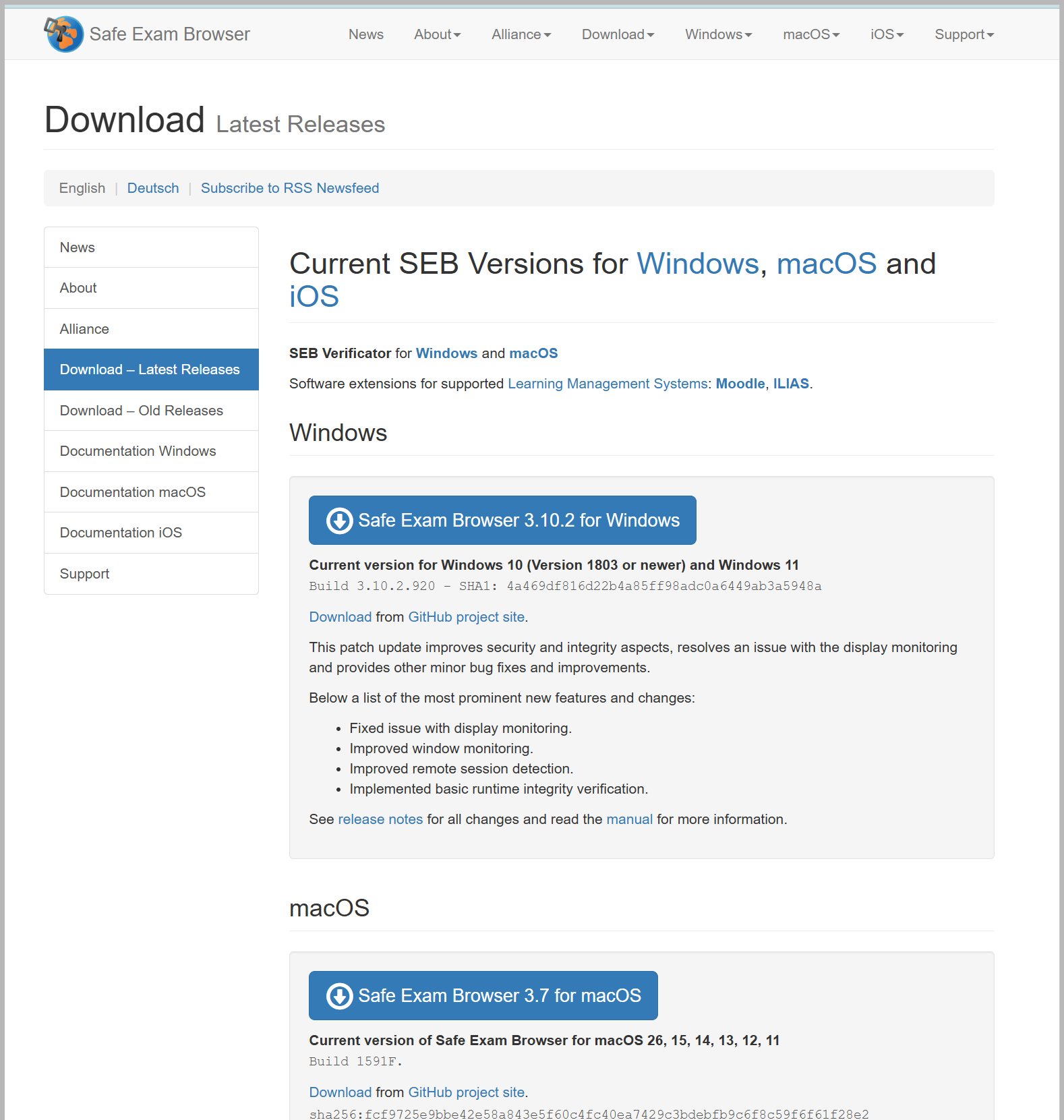
Open the official Safe Exam Browser download page, choose the version for your device, and install it.
When installing SEB on a computer, you must be able to provide administrator privileges, for example by entering an administrator password. If you are using a computer managed by your school or workplace and you do not have these privileges, you may need help from an IT administrator.
Before starting SEB, save any unfinished work and close programs that you do not need during the test.
After installation, you do not need to change the SEB settings yourself. The installed SEB is not yet configured for a specific exam – the required settings are provided through the exam or Moodle.
2. Test SEB in Moodle
At EMKTS, we generally try to provide an opportunity to test Safe Exam Browser on the same Moodle page or course where the actual exam will later take place. This allows you to check in advance that SEB is installed correctly and opens on your device.
- Open EMKTS Moodle in your regular web browser and log in.
- Find the Safe Exam Browser test exam near the actual exam.
- Open the test and launch it with Safe Exam Browser.
- If your web browser asks for permission to open Safe Exam Browser, confirm it.
SEB receives the settings required for the exam from Moodle and opens the test in a secure browser environment.
Complete the test exam and submit your answers. The purpose of the test exam is not to assess your knowledge, but to check that your device and Safe Exam Browser are ready for the actual exam.
3. Finish the Test and Exit Safe Exam Browser
First, submit the test exam in Moodle.
The exact way to exit SEB depends on the exam settings. For example, after submitting the test, a Quit/Unlock link may appear, or there may be a Quit button in the SEB window. For some exams, a password set by the exam organiser may be required to exit. Safe Exam Browser does not have a universal exit password.
Whenever possible, we configure the test exam so that you can exit SEB normally by yourself after completing the test.
Check that you were able to:
- install SEB;
- open the Moodle test exam in SEB;
- complete the test and submit your answers;
- exit Safe Exam Browser.
If all of these steps were successful, your device is ready for taking an exam with SEB.
If you encounter a problem: first try the EMKTS test exam again. If SEB does not start, the test does not open, or you cannot exit SEB after completing the test, contact your teacher, the exam organiser, or EMKTS IT support.
Last checked: 04.09.2026