
How to record and post a short video in Moodle
Moodle’s text editor, known as Atto, makes adding video and audio clips easy. You don’t need to upload the video as a separate file — you can record it directly in a web browser, for example in a forum post or in an assignment.
Below are instructions on how to record a video directly in the editor and post it.
1. Open the text editor
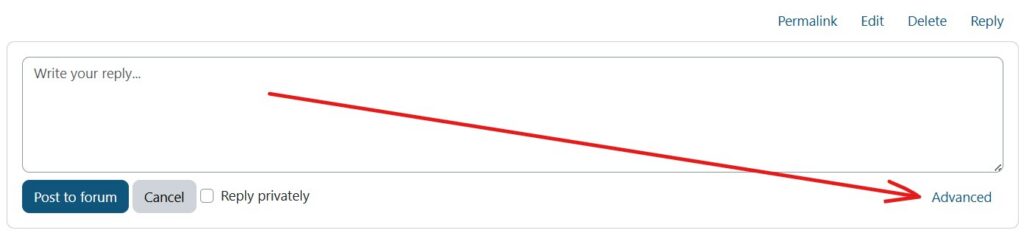
Go in Moodle to the place where you want to post your message. If you don’t see the editor buttons right away, first click the Advanced button.
There you will see the usual toolbar that is used for entering text.
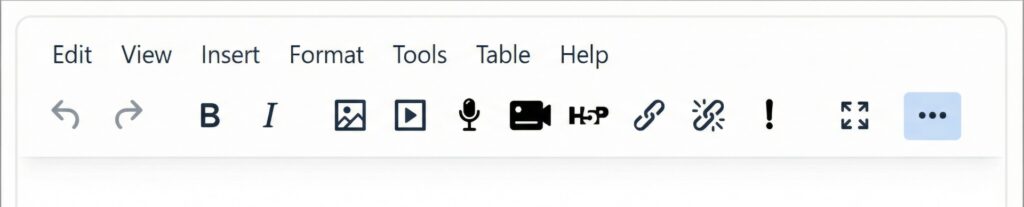
2. Find the video recording icon
Look at the toolbar icons. There are special buttons for recording audio and video directly in the editor. To record video, find the icon that looks like a small video camera
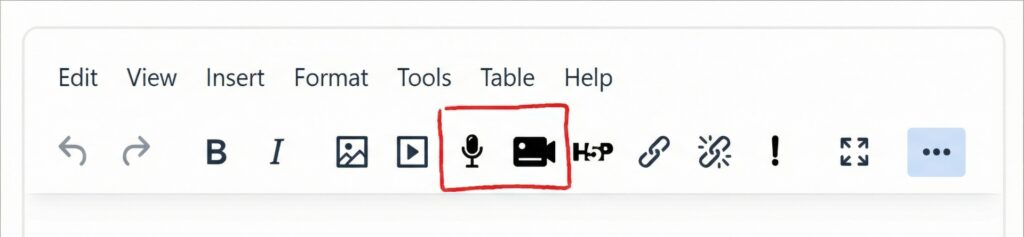
Note: This is different from the regular media add button, which is used to upload ready-made files.
3. Start recording
Click the video camera icon. A window will open where you can start recording:
- If the browser asks for permission to record, allow it.
- Make sure the camera is working.
- Check that you are ready (find a quiet and well-lit place)
- Click the “Start recording” button
- Record your message.
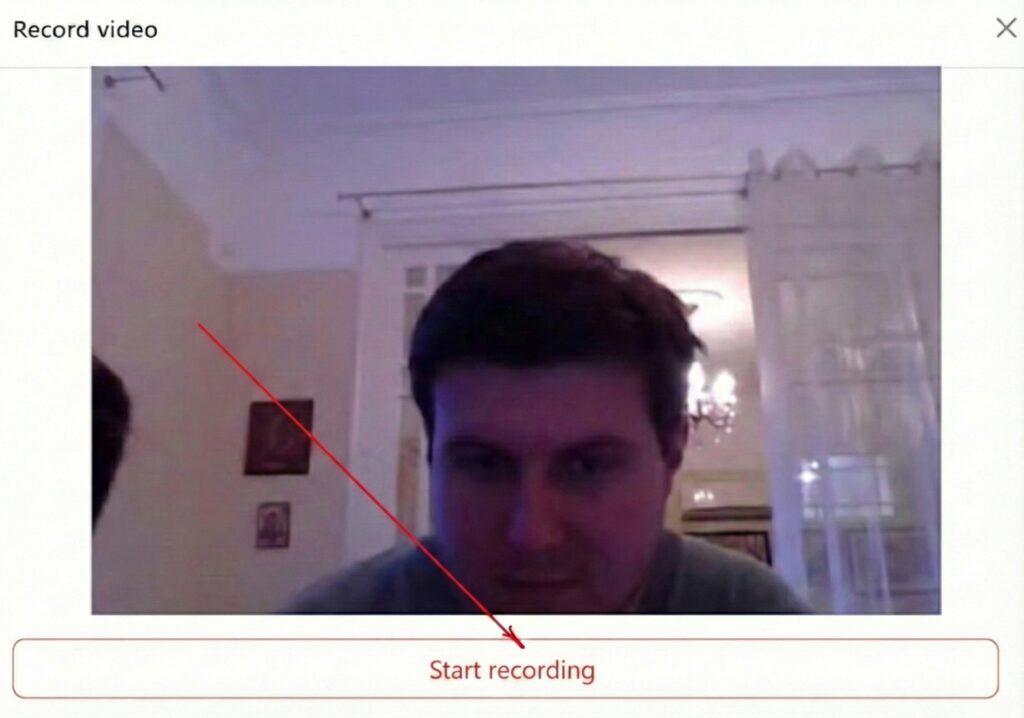
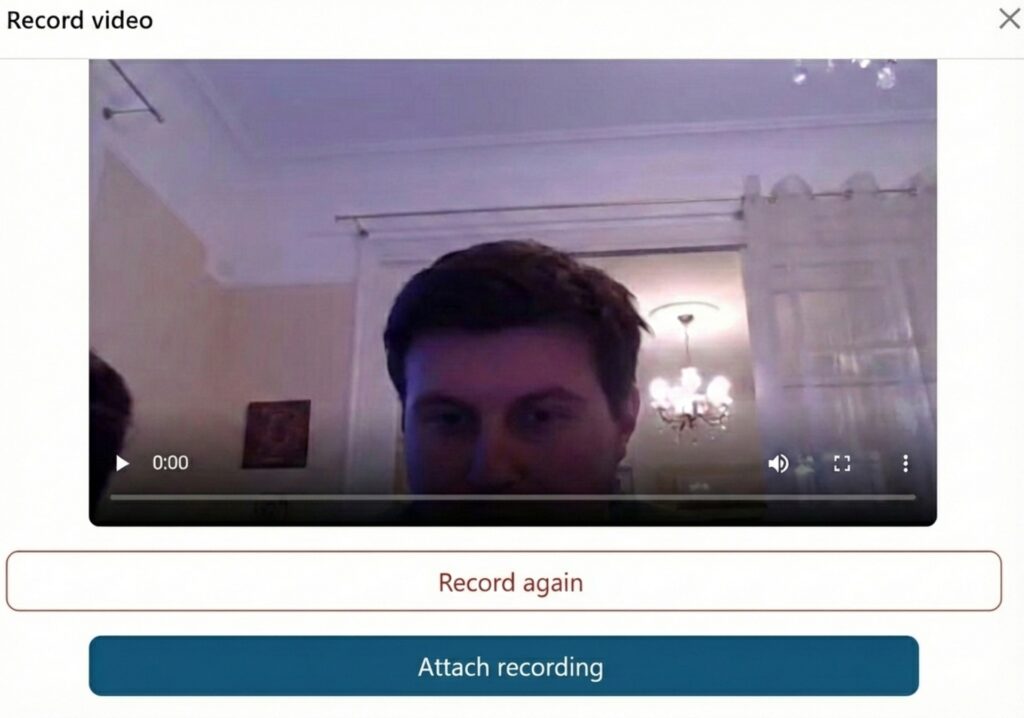
After recording the video, click the “Stop recording” button. Then you will have the following options:
- Listen/Watch: You can immediately check the recording using the player controls.
- Record again: If you are not happy with the result, you can immediately try again.
- Attach recording: If you are happy with the video, click this button to add the video to your post.
5. Post your reply
After adding the video, you will see it in the text editor. To finish, save your post or submit the assignment.
Important: Videos and links become active and playable only after you have added the video to the post and fully saved the forum post / fully submitted the assignment.
For a new video, as a rule, create a new post / a new assignment submission.
Additional information and tips
- Mobile use: Students can use this method on mobile devices as well.