Guide: How to Add Video in Moodle
In the Moodle learning environment, sharing videos is a great way to enrich learning materials in forums, assignments, and learning texts. In this guide, we look at how to add video using Moodle’s default text editor Atto, by using its dedicated multimedia tool.
NB! This guide does not cover recording a video directly. It explains how to add an existing external video (a file from your computer or a link from YouTube/Vimeo, etc.).
1. Opening the toolbar
When you open a text box in Moodle (for example, when replying in a forum), you will see the Atto editor toolbar. By default, it is often collapsed and shows only one row of icons.
- To see more options, click the first icon at the top left (an arrow/corner or a keyboard symbol) to expand the toolbar.

2. Finding the media button
To add a video, use the dedicated multimedia icon, not the regular link (chain) icon. This helps ensure the video opens in a player directly on the Moodle page.
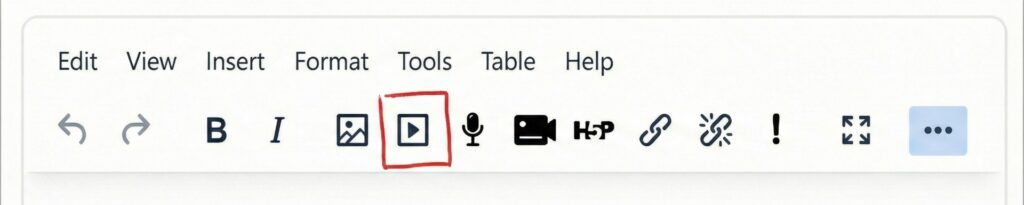
- Look for the icon that looks like a film strip or a camera (usually on the second row).
- When you hover over the button, you will see the tooltip: “Insert or edit an audio/video file”.
3. Adding a video (Two methods)
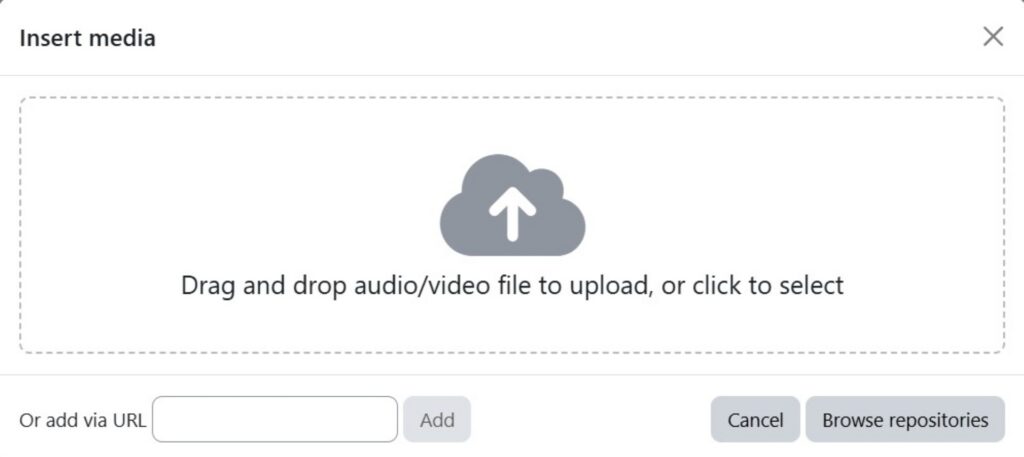
When you click the media button, a pop-up window will open. Let’s look at the two main ways to add a video.
Method A: Add a video via a web link (URL)
This is the preferred method if the video is on YouTube or Vimeo. Moodle supports automatic embedding for videos from these platforms.
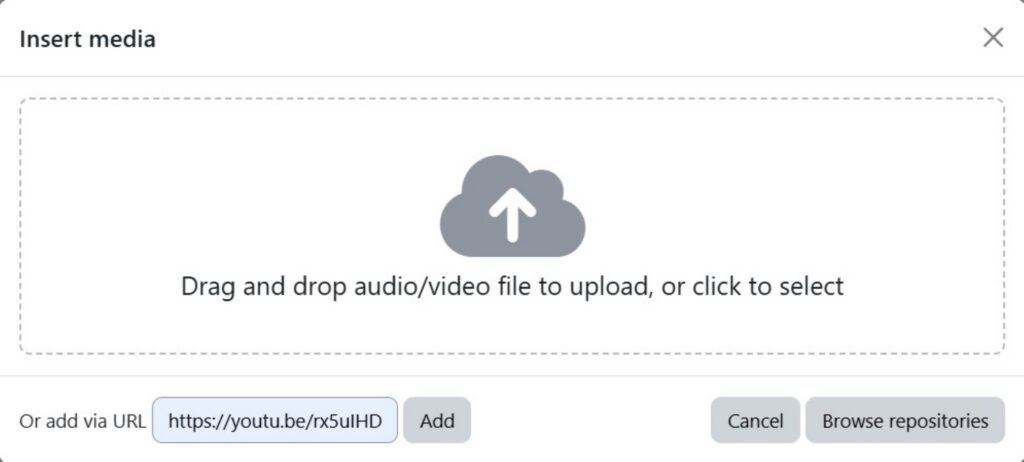
- In the Or add via URL field, paste your video web address (URL).
- Click Add.
- 3. Add the video (media) title in the field: Media title
- 4. Save by clicking Save
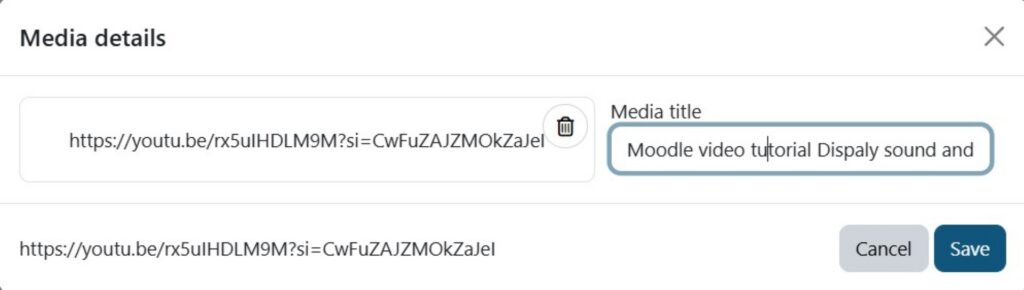
Method B: Upload a video file from your computer
Use this method if the video file is on your computer (for example, .mp4, .mov, .m4v).
- In the same pop-up window, click the area: Drag and drop audio/video file to uplad or click to select.
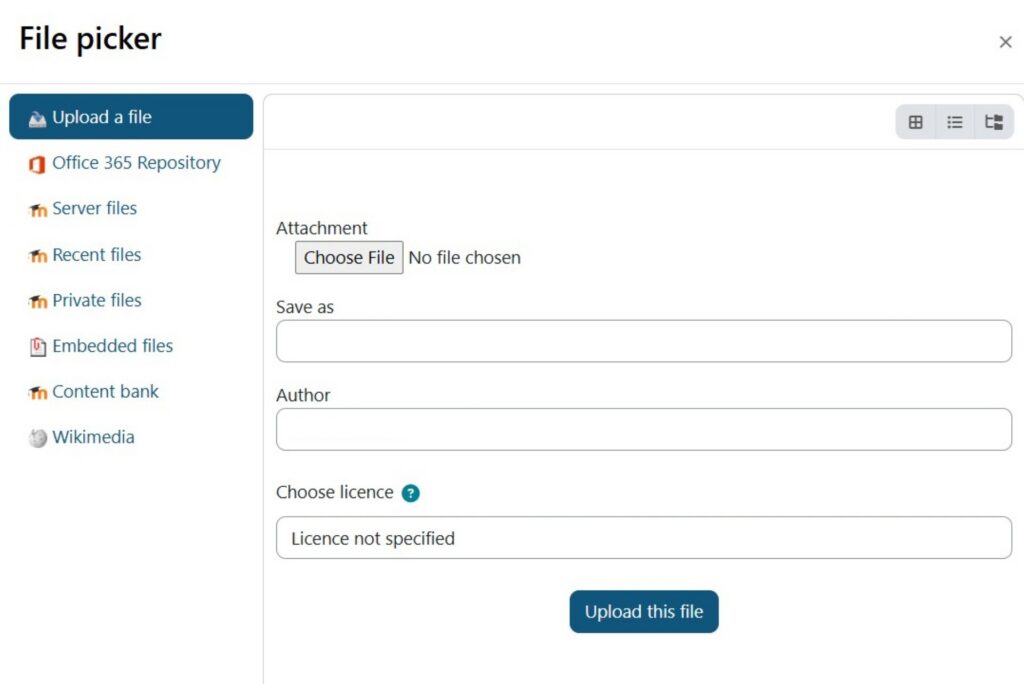
You can drag the file into this window or upload it. - You can also use the “Browse repositories” button.
- Select the file from your computer and upload it.
- To confirm, click “Upload this file”.
4. Checking the result and saving
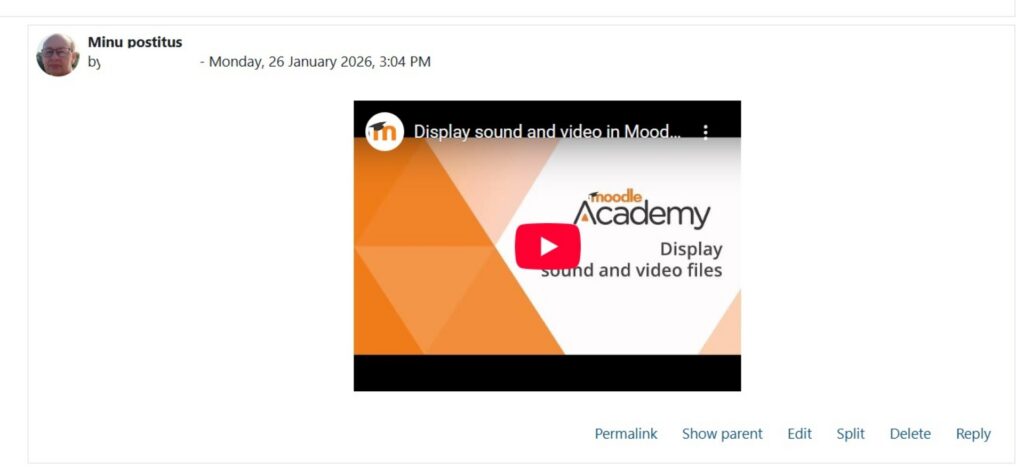
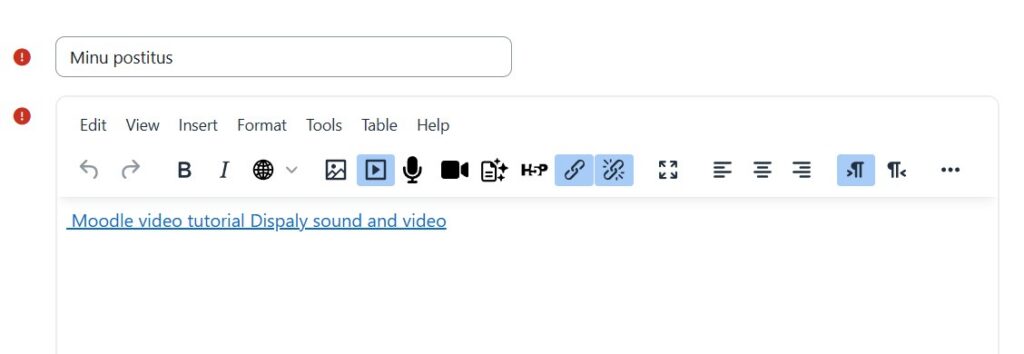
After adding the video, you may notice that the video does not play inside the editor window. This is normal!
- In editing view, the video is often shown only as a blue text link.
- A YouTube link turns into a video player only after you click the button at the bottom of the page: “Post to forum” or “Save changes”.
- Another URL link or a file uploaded from a computer will usually still appear as a link, which opens in a separate window for viewing or downloading.